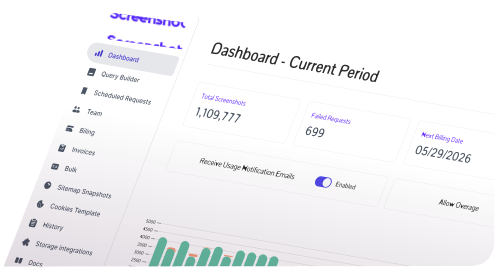
Trigger screenshots from Zapier, Make, n8n, or Google Sheets, post them to Slack, and store them in your own S3, Wasabi, or Google Cloud bucket. Every integration runs on the same rendering engine as the API.
11 integrations
Pick the tool you already use. Each entry links to a step by step tutorial or the exact docs page you need to set it up.
Let Claude, Cursor, and other AI clients take screenshots, make PDFs, and read rendered pages for you.
Add 8 ScreenshotAPI tools to Claude Desktop, Claude Code, Cursor, Windsurf, VS Code, Cline, or Codex. Ask in plain English and the assistant makes the API call.
Set up the MCP serverTrigger captures from any app event and send the result wherever your workflow goes next.
Take periodic or conditional screenshots from any Zap. Fire a capture on a form submission, CRM update, or schedule and pass the image URL to Slack, email, or Google Drive.
Read the Zapier tutorialBuild visual scenarios that call ScreenshotAPI on a timer and save every capture straight into a Google Drive folder or any other Make module.
Read the Make tutorialAutomate screenshots inside a self-hosted n8n workflow, so your URLs and captures never leave your own infrastructure.
Read the n8n tutorialConnect ScreenshotAPI to hundreds of business apps with ready-made viaSocket connectors. No code and no server to maintain.
Open on viaSocketPut captures where your team already looks: a sheet of URLs or a shared channel.
Add a custom SCREENSHOT() function to any sheet and capture every URL in a column. Useful for competitor tracking, QA lists, and visual audits.
Read the Sheets tutorialPost scheduled website screenshots into any Slack channel. Set the schedule once and the latest capture lands in the channel automatically.
See the Slack schedulerBring your own bucket. Pass byob=true with storage_service and bucket_name and every capture is written to your storage instead of ours.
Write screenshots and PDFs directly to an S3 bucket you own. Set storage_service=aws and choose the bucket per request.
Storage integration docsS3 compatible storage with predictable pricing and no egress fees. Set storage_service=wasabi to route captures there.
Storage integration docsPush captures into a GCS bucket for teams already running on Google Cloud. Set storage_service=google_cloud.
Storage integration docsEverything above is built on the same REST endpoint you can call yourself.
One GET request with your token and a URL returns a screenshot, PDF, or scraped content. Works from cURL, Node.js, Python, PHP, Ruby, Go, or anything that speaks HTTP.
Read the docsCommon questions about connecting ScreenshotAPI to automation tools, spreadsheets, chat, and cloud storage.
Don't see your question here?
Browse all help articles